Mostrando entradas con la etiqueta Social Media. Mostrar todas las entradas

lunes, 3 de agosto de 2015

Killer Trick To Invite All Friends To Facebook Page

Are you fed up from inviting people for your Facebook page one by one? If yes, then you've landed on the right place. This is one of the worst thing about Facebook page. Officially Facebook has not given any option to send page like invitation in bulk. And I can bet that almost 99.99% people are tired by selecting people one by one for Facebook page like invitation. 
Invite all friends to facebook page
Invite All Friends To Facebook Page
Let me show you how much complicated and time consuming this process is, say you're having 5000 friends on FB and now you've just decided to create a page. Then you started selecting your friends, wait! wait!, what I said?, are you really going to select 5000 friends? Lol! we both know that it would surely take around 1-2 hour to select all the friends. 

No one is going to spend this much time to get just few likes (Researches show that on inviting 5000 friends for your Facebook page, you get around 150-200 likes only). Be calm, every problem has a solution. If there's a issue then its solution is generated with a couple of days.

We've found some simple to use tricks which you can use to invite all your friends in just one click only. Isn't it's wonderful? Yes it is. Overall we're going to save our 1 hour. Currently we're having two ways to invite all friends on Facebook. We've mentioned both of them with complete step by step process. You don't any technical skills to use them. In short it's a single click work. You might wanna check how to share post into multiple Facebook groups in one click after reading this article.

1. Invite All Facebook Friends Using Google Chrome Extension

If you would ask me the most simplest method to invite all your Facebook friends then I would suggest you this method. This is the only way which can complete your work by just one click. Below is a step by step process to use this extension. 

  • First of all you need to add this extension into your Google Chrome browser. You can get the link of this extension below by just sharing this article on one of the social media.
  • Simply click on the link and on the next page click on Install button. It'll ask you to add it in Chrome browser, allow it without thinking much.
  • Once the installation process is complete you can see its icon in the address bar.

invite all friends extension icon
Extension Icon
  • Remember you'll able to see this icon on opening your Facebook page otherwise you can't notice it.
  • Now just log in into your Facebook account whom friends you wanna invite.
  • Navigate to your FB page and click on "Click here to invite your friends".
  • This will pop up a new window with all your friends showing in it.
  • Now simply click on invite all friends extension icon. It will pop up a new window with a notice to wait for some time.
All Facebook friends selected
Friends Selected Automatically
  • Within few minutes all your friends will get selected, after that just click on invite friends. That's it.


2. Using Script

Another great, working and one click invite method. We've added one script below in order to invite all your Facebook friends. Just paste this script and let it allow to do your job.

  • Navigate to your Facebook page and click on "Click here to invite your friends".
  • New pop up window will appear. Press F12 key from your keyboard to open console window. (On some system you may need to press function key along with F12)
  • Copy the code given below and paste it in the console box.
var inputs = document.getElementsByClassName('uiButton _1sm'); for(var i=0; i<inputs.length;i++) { inputs[i].click(); } 
  • Hit enter button and allow it to take some time. That's it, you're done.
So this was all about how to invite all friends on Facebook in just one click. If you've any other working method then mention it below, we would love to share it with our friends. For any query or doubt feel free to leave a comment below in the comment section.
Share:

domingo, 14 de junio de 2015

[Tutorial] Log Out From Facebook Messenger On Android

You might have noticed sometime that Facebook is trying to force you to use it's messenger app. Most of the people are not happy with this behavior of Facebook. If you're using Facebook's messenger app to send and receive messages then observe one think that you can't log out from it. Facebook has not provided any direct log out button in it. This is quiet unfair with the users. May be Facebook doesn't want that people stop using it and uninstall it from their Smartphone.
log-out-facebook-messenger-on-android

No doubt that Facebook messenger is the most easiest and comfortable way to connect with your friends, colleague and family members but you don't wanna stay active all the time. This is the only feature which should be added in the app regarding the next improvement update.

But don't worry there's a way to logout from the Facebook messenger app on android. It might be a little difficult task to think about it for a non technical person. Below is a step by step mentioned guide, follow it to log out from messenger android app.


How To Log Out From Facebook Messenger On Android


  1. First of all you need to remove Facebook messenger from the recent apps tray. Just press the home button (There can be any different button or option to show recent apps for different Smartphone) on your Smartphone and remove it from recent apps. 
  2. Now navigate to "Setting" in your Smartphone either from menu or just swipe down on your home screen and choose setting button.
  3. Search for "Apps" or "Application" in the setting menu.
  4. Click on it there you can see all the installed application on your Smartphone.
  5. Search for "Facebook messenger" and click on it.
  6. Then simply click on "Clear Data" button to clear app's data.
  7. That's it. You're logged out from Facebook messenger. Now you will see login screen again when you will open Messenger. 
Must Read :-
15+ Facts About Founder Of Facebook - Mark Zuckerberg
15+1 Latest Facebook Tips & Tricks
4 Ways To Make Money Through Facebook


This was all about how to log out from Facebook messenger on Android Smartphone. If you have any doubt or query then feel free to leave a comment below in the comment section.
Share:

viernes, 27 de febrero de 2015

[How To] Post Animated GIF Images On Facebook

As we know that Facebook doesn't support animated GIF images. If you will upload a GIF image on Facebook then it will not run like a ordinary image in-spite of this it will look like a simple image only. Earlier people found some ways to upload and show GIFs on Facebook but in some days of internal Facebook found the bug and fixed it. So now you are not able to show animated images directly on the Facebook. The only reason behind not showing of GIF images is that it makes Facebook's site slow which decreases it's quality. So in order to maintain site loading time and quality Facebook team doesn't allow direct uploading of animated GIF images.
How-To-Post-Animated-GIF-Images-On-Facebook
You might be aware that Google+ loads a little slower than Facebook because it supports direct uploading of GIF images.

If you're here then don't worry at the end of this article you will be able to post GIFs on Facebook directly similar like Google+. After using this trick you can easily post animated images on your wall, your friend's wall or in a group. Just follow the step by step guide mentioned below. Be careful and apply each and every step carefully otherwise you will get an error message.

How To Post Animated GIF Images On Facebook

This is an simple to use trick with the use of an third-party website. Follow the steps and apply in order to upload animation on Facebook. 
  • First of all we will need to upload your GIF image on a third-party website so that you can share it easily on Facebook. Simply go to GIPHY website or click here to go. 
  • Now you will have two options either choose your own GIF image or search for existing GIF image on the website. 
  • If you want to upload then simply click on Upload button at the top right corner and then select your desired image and click on Upload GIF (See in the screenshot below).
Upload-GIF-Image

  • You can also upload a GIF image by pasting its url in the field OR Enter A GIF URL.
  • If you want to choose existing image then search for it on the site and open it.
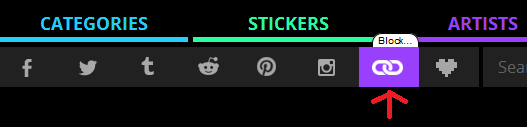
  • Now click on chain icon to copy the URL of the image as shown in the image below.
Click-On-Chain-Icon
 
  • This will copy the URL of the image.
  • Now just go to your Facebook profile or your friend's profile or in a group. Paste the URL that you copied and post it on the Facebook and that's it. This will upload GIF on Facebook, when your friends will click on it then it will be able to run properly.
So this was all about how to upload or post a GIF or animated image on Facebook. If you have any question, query or another working method then feel free to mention it in the comment section below.
Share:

lunes, 23 de febrero de 2015

[How To] Change/Refresh Facebook Homepage Login Screen

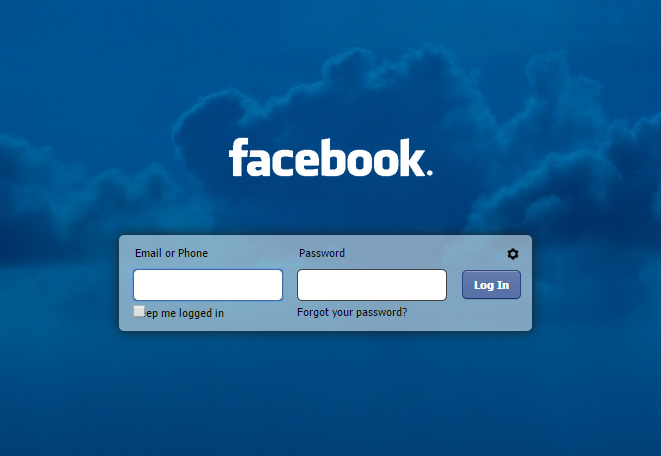
Are you fed up from that blue Facebook home page login screen? Did you ever think of changing it? If not then don't worry I have found a trick to change it and make it looks more better. If you are using that blue theme from years and now it looks boring to you then just change it with the awesome working trick mentioned in this article. Today after reading this article you will come to know that how to change Facebook homepage login screen easily with the use of just an extension called FB Refresh. This is one of the widely used and most trustable extension available to change facebook login screen in your browser.
Change Refresh Facebook Homepage Login Screen
If you're bored with your facebook login screen then just refresh it with one of the coolest extension FB refresh. Follow the steps mentioned below :

How To Change Facebook Homepage Login Screen In Google Chrome

  • First of all you will need to install FB Refresh extension on your Google Chrome browser. Click Here to install it in your browser.
  • The above link will open Google Chrome store, just click on Add To Chrome and then it will take some time in installing, till then wait.
  • When the installation process is complete, navigate to the bar at the right hand top corner of your Chrome browser. Click on it, then select More Tools and then click on Extensions.

FB Refresh Extension
  • There you will see your installed FB Refresh. Click on options below the FB Refresh extension. Now you will see a new windows (Check The Screenshot Below).
FB Refresh Extension New Window
  • At left side you will see a option "Theme", click on that and then you can see a list of available themes for Facebook login screen. 
  • Choose the theme which you want to apply and click on "Select". It will set that theme to your current Facebook homepage theme.
  • You can choose your own theme also, just go to "Custom Theme" option and choose your own desired image, upload it and then it will be your current Facebook login screen.
Note:- When uploading images, all images are uploaded to the public image hosting website imgur.com. So please be aware that your images could potentially be viewed by anyone on the internet. FB Refresh offer no guarantee as to the privacy of your images. They are also in no way affiliated with imgur.com

So it was all about how to change your Facebook login screen or homepage theme. FB Refresh is one of the simplest extension available to change login screen. It is freely available, anyone can install it and can use it. But remember it's only available for Google Chrome browser only. If you have any doubt or query then feel free to mention a comment below. I will reply as soon as possible.
Share:

lunes, 8 de diciembre de 2014

How To Share Post Into Multiple Facebook Groups In One Click

We all are aware about the popularity of Facebook. It's one of the best method to share your content online or you can say best social media ever build to promote your contents and products online. Facebook provides many features to boost your traffic in seconds such as Facebook Page, FB Groups, Your Own FB Wall etc. If you will ask me which is the best method in these features to viral your product or content then I will go for FB groups. The reason is that it's a child play to join a Facebook group but to spread your post, images on internet via Facebook page you will first need decent likes on your FB page say 100000. Which is a little difficult task.
Share-Post-Into-Multiple-Facebook-Groups-At-Once
Share-Post-Into-Multiple-FB-Groups
If you will debate with me that I can share my content through my own wall so let me remind you, Facebook allows only 5000 friends in a single ID. So everything is crystal clear, only groups are the best way to reach a big crowd of people.

You can join as many groups as you want. But the thing of consideration in this article is that you can't promote your content in groups one by one. It will cost you a lot of time. According to me no one have this much of time at present. So to help you I have found a trick using it you can share your post in multiple FB groups in just one click. You will be able to share your post, images in multiple Facebook groups at a time in a single click only.


What You Will Need?

The first thing that you will need is Groups. Lol, to share your content this is the only thing which you will need right now. Go and join lots of Facebook groups in your niche.

Read Also :- Recover Deleted Whatsapp Messages

Note:- Try to join only those groups which have at least 10000 members because this is the minimum amount which will drive decent traffic to your posts.

How To Share Post Into Multiple Facebook Groups At Once

You might not be aware about this thing that every FB group has an email address same as every profile on Facebook possess email address. The first work is to grab the email address of all the groups that you have joined. 

How To Grab Email Address Of Facebook Groups

There are currently two methods to find email address of Facebook groups.

1. Simply click on the 'About' tab of a group and then you can see the email address of that group on the top right hand corner of the page. However, most of the groups will be missing email address because the admin has removed the email address from being shown.

2. This is the evergreen way to find the email address of a group. You can find it by looking at the URL in the address bar. Each group's URL is distinguished by either a name or a number. 

Now follow the steps below:

Step 1: If you are able to find email address of a group in the about section then it's fine otherwise look at the address bar of your browser. You will see two types of URL there either the 1st one or the second one.
1. https://www.facebook.com/groups/username
2. https://www.facebook.com/groups/287468242758487/

Step 2: Copy the username or the group id like here it is 287468242758487.

Step 3: Now we will create email address of a Facebook group. Just paste username or group id before @groups.facebook.com. After doing it your email address will look something like below.

username@groups.facebook.com
or
287468242758487@groups.facebook.com

Step 4:
Use above steps to create email address for all the groups that you have joined, make a list of those emails by separating with commas.

Step 5: Now we need to compose a email, simple sign in your email address which you have used to create your FB account. (You can use Gmail, Yahoo or any other).

Step 6:
Click on Compose E-mail.

Step 7: After that copy all the groups emails and paste them in the BCC field.

Step 8: After that add the desired material such as texts, images or links which you want share and click on Send button. That's it, you are done.

So this was a simple guide on how to share your content into multiple FB groups at once. You can join my Facebook group if you need traffic on your contents and products. Currently it's having 11000+ members and the list is growing day by day. Below is the link of my FB Group, go join it and grab the traffic.


Share:

martes, 4 de noviembre de 2014

15+1 Latest Facebook Tips & Tricks

In today's world there will be negligible people probably who don't know about Facebook. Now a days even a child of 12 to 13 years old is using Facebook. We use Facebook for hours but still we don't know much about FB. There are many features which one may want to use such as not letting others see you saw their message or checking out who all are online but are invisible and many more. There are many tricks and secrets available that you don't know about Facebook probably. So today i am going to show you such types of Facebook tips and tricks which will help you a lot to be more popular on Facebook :p. Just check out below and enjoy.


Facebook Tips & Tricks

1. How To Download Facebook Videos

You might have noted that you can simply watch videos on FB just like YouTube but you can't download them. If you are facing problem in downloading Facebook videos or finding a simplest method to download them then just follow below steps!
  • Simply copy the URL of the video you want to download. 
  • Now go to http://www.downvids.net.
  • Just paste your URL on the above website, download the video and enjoy!!


2. How To Remove Facebook Advertisements

This is one of the problems which I face a lot on Facebook. No one likes those sticky ads on FB. If you are one of the users who don't like ads then you can remove them simply using Fabulous extension. If you use Google Chrome then you can remove Facebook advertisements using Fabulous extension.
 
Read Also :- Get Android Lollipop Look On Your Smartphone with These 5 Apps


3. How To Create Awesome Text Styles For Facebook

Some people are fond of cool and awesome looking text styles. So those users here is something for you also, using Webestools you can convert your text in cool and stylish fonts.

4. How To Customize Facebook Fonts And Colors

Fabulous extension for Google Chrome can be used to remove ads on FB as I mentioned above. But you can use it to customize your Facebook fonts and colors also. Just install it in your Google Chrome and customize your fonts as you want.

5. How To Send Large Files Up To 1GB On Facebook

Yes! I said it right; you can easily send large size files on Facebook. You can store them your files for some days so that one downloads them. Your friends can download these files through pipe App on Facebook. There is a time limit of 1 week mean within one week your fiends will need to download them.

6. How To Find Who Unfriended You On Facebook

This is a quiet interesting feature about Facebook. You can know about those users who unfriended you on Facebook easily using available apps. But the fact is that there are many apps available which claims to show the list of users who unfriended but trust me all are fake. I have used many apps on my own and found almost all the apps fake, scam. But don't worry I have one app called unfriend alerts using it you can easily find who unfriended you on Facebook. This app will send you notifications whenever someone will remove you from his/her friend list.

7. How To Choose Custom Title And Description For Links

One can easily choose custom title and description for links that are posted on Facebook by clicking on them.

8. How To Disable Seen Option In Facebook Chat

We all know that whenever we send a message to someone Facebook if it is seen by that user then there will be written "seen at xx:xx AM/PM". Sometime one wishes to disable that feature but can't do anything because he can't find a proper solution for it. Everyone knows how tricky this seen feature is. But now you can disable it by using FB unseen extension for Google Chrome. After installing it your friend will never know that you have seen their message.


9. How To Change Facebook Themes

If you are not happy with the color or theme of FB then what are you thinking just change it completely using extension Facebook themes. This extension allows you to change the look of your FB completely easily. You can find hundreds of themes in it. Just give it a try and change your Facebook completely.

10. How To Check Who Is Online After Being Offline

If you think that your best friend or girl friend is online but pretending to be offline by getting invisible then simply use Online now application to detect who is online and is trying to ignore by getting invisible.

11. How To Login To Multiple Facebook Account At A Time

Some users operate more than one Facebook account then it's a little bit difficult to open multiple FB account in different browsers and then keep on switching them. Here's a simple solution of it, If you use Google Chrome then you can open multiple FB account within Google Chrome only. Follow the steps below:
  • Login to your Facebook account. 
  • Then click on settings tab and add a new user to chrome browser.
  • This will open a new Google Chrome window and now on it you can open another FB account and can manage them easily at a time.


12. Facebook Fake Wall Post - Prank

Thewallmachine allows you to create custom Facebook status, updates, alerts and even events on the behalf of famous celebrities. You can use it as a prank with your friends. So give it a try and enjoy.

13. How To Stop Facebook From Tracking You

You probably don't know but Facebook tracks about your each and every activity on the internet. It keeps a record about your surfing on the internet. Facebook does this to make money from it. FB tracks almost everything when you are on the internet. But don't worry you can stop Facebook from tracking you using browser extension. One can use Facebook Disconnect extension for this. This extension is available for both Google Chrome and Mozilla. One can easily download and install it.

14. How To Make Facebook Talk Like A Pirate

Well, this is a feature provided by Facebook. This feature translate all of your friend's posts into pirate slang. Is it Quiet interesting? Yes it is. Follow the steps below to make FB talk like a pirate.
  • First of all click on the upside down triangle in the upper right-hand corner on your FB homepage. 
  • Now click on the "Settings" link. Where it says "Language" click on edit button.
  • Then navigate to the "English (Pirate)" option and enjoy.


15. How To Combine Your Profile Picture And Cover Photo

You might have seen some FB pages where the profile picture and cover photo looks like a seamless photo. This is done by some graphical techniques. You can use Tricked Out Timeline tool to upload an image and then turn it into a cover photo and profile picture combo that looks really amazing.


16. Find Hidden Unread Messages

Many people don't know this but you might be getting messages from people and don't know it. If someone sends you a message and you have no mutual friends, Facebook automatically filters their message into the "Other" message folder. To find the "Other" folder, click the word bubble icon at the top of the page. Then next to where it says "Inbox" click "Other."
Share:

domingo, 28 de septiembre de 2014

15+ Facts About Founder Of Facebook - Mark Zuckerberg

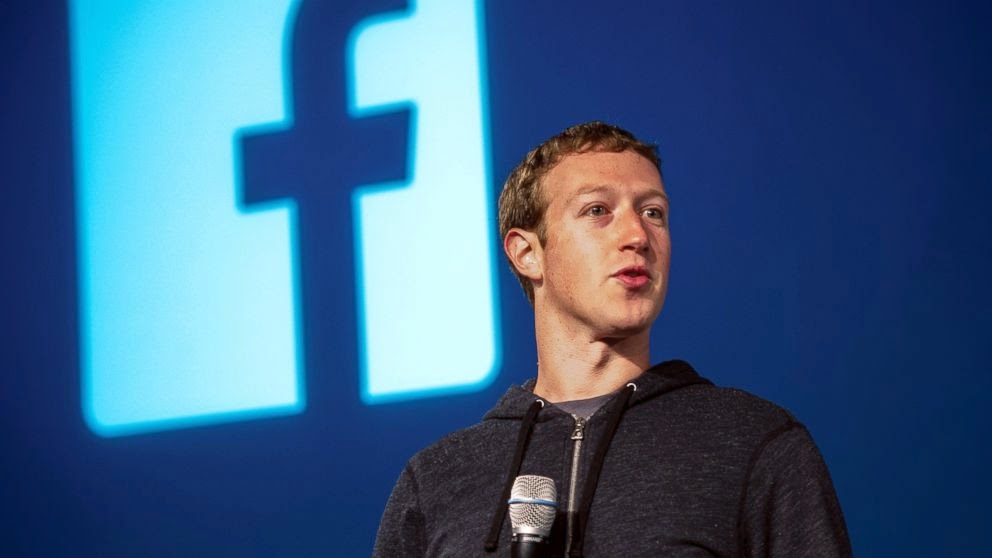
Each and every user knows about Mark Zuckerberg, the founder of Facebook. If a person is using Facebook and he don't know about Mark Zuckerberg, it's impossible. He is the youngest billionaire and entrepreneur. So today i have found some amazing facts about Mark which you might don't know. If you are a fan of Zuckerberg then this article is going to be really interesting for you.

Mark Zuckerberg
Mark Zuckerberg

#1 Mark Zuckerberg doesn’t own a television. He says that he has no time for TV.


#2 Mark Zuckerberg is color blind. He has red-green blindness. I think this is why blue is the primary color of Facebook.


#3 Mark Zuckerberg’s interest in programming developed when his parents gifted him the book C++ for Dummies.


#4 To be able to communicate with his girlfriend Priscilla Chan’s family members, Zuckerberg started to learn Chinese in 2010.


#5 Mark Zuckerberg is College Dropper. While in high school, Zuckerberg co-developed a music app called Synapse Media Player. Tech giants Microsoft and AOL reportedly offered Zuckerberg a million dollars to further develop the app as well as wanted to hire him. Zuckerberg instead chose to join Harvard University.


#6 Mark Zuckerberg is youngest billionaire in the world.


#7 In 1996, Mark Zuckerberg created an instant messenger ZUCKNET which was used by Mark’s family to communicate with each other.


#8 Mark Zuckerberg is multilingual. He can read & write five different languages i.e. English, French, Latin, Hebrew & Ancient Greek.


#9 Mark Zuckerberg thinks 4 as his lucky number because Mark Zuckerberg born on 14th May 1984 , also launched Facebook on 4th Feb, 2004, also have 4th user id on Facebook. i.e. fb.com/4


#10 In October 2010, Zuckerberg took a bunch of Facebook staffers to a public theater to see “The Social Network,” the movie about the founding of Facebook.


#11 In 2010 Zuckerberg along with Bill Gates and Warren Buffet signed the Giving Pledge, which is a promise to donate at least half of their wealth to charity.


#12 Each year he sets himself for a new challenge. In 2009, he wore a tie to work every day to show he was "serious" about his company. In 2010 he learned Mandarin (a language his Facebook profile says he can speak). In 2011 he only ate animals that he had killed himself and in 2012 his challenge was to code every day. In 2013 he challenged himself to meet a new person outside of Facebook every day. This year his challenge is to write at least one thank you note vi email.


#13 He met his wife while queuing for the bathroom. They soon began dating and this couple tied the knot in 2012.


#14 Zuckerberg drives a black Acura TSX. The 27-year old has been reported as saying "it's safe, comfortable, not ostentatious.


#15 His favorite quote is Albert Einstein’s "Make things as simple as possible but no simpler".


#16 He owns a Hungarian sheepdog named Beast, who has a Facebook page with 1.5 million fans.

Content Source : OnlyLoudest
Share:

jueves, 14 de agosto de 2014

4 Ultimate Ways To Speed Up Buffering Speed of YouTube Videos

As you know YouTube is the largest source of video stuff available online. According to a rough estimate more than 1 billion unique users visit YouTube each month and over 6 billion hours of video are watched. There are lots of video networks available online but users prefer YouTube, because it is the biggest video community. Users go for YouTube because they are sure about one thing that they will surely found result of their search.
Speed Up Buffering Speed
If you are having a high speed internet connection then you can stream YouTube videos without any error. But if you are on a slow connection then it becomes very difficult for us to buffer videos continuously. And if you want to watch something really important then you will need high speed internet connection otherwise this can be really frustrating for you. But don’t worry I am having some tips and tricks using them you can buffer YouTube videos at slow internet connection also.

1. Use SpeedBit Video Accelerator :-
It’s third-party software to improve buffering speed of YouTube videos. All you have to do it is install Video Accelerator and boost your streaming speed up to a large extent. It will configure everything to provide you best online video experience. It supports over 165 video sites including major streaming sites YouTube, Dailymotion, Metacafe etc. 


SpeedBit comes with both free as well as premium version. Free version supports Normal Quality video acceleration while premium version can accelerate HD quality videos also.


2. Through System.ini File :-
This is also one of the coolest ways to speed up streaming of your YouTube videos. Simply follow the steps to configure.
  • Go to RUN (Window Key + R) and type system.ini in the dialogue box and press enter. 
  • It will open a Notepad file. 
  • A code will show up just like below.
; for 16-bit app support
[386Enh]
woafont=dosapp.fon
EGA80WOA.FON=EGA80WOA.FON
EGA40WOA.FON=EGA40WOA.FON
CGA80WOA.FON=CGA80WOA.FON
CGA40WOA.FON=CGA40WOA.FON


[drivers]
wave=mmdrv.dll
timer=timer.drv


[mci]


  • Firstly backup the code in another Notepad file. Now copy the code below and just paste it after the above code in the Notepad file.
page buffer=100Tbps
load=100Tbps
download=100Tbps
save=100Tbps
back=100Tbps
search=100Tbps
sound=100Tbps
webcam=100Tbps
voice=100Tbps
faxmodemfast=100Tbps
update=100Tbps


3. By Blocking Some IPs :-
This is a trick by a guy named Mitch Ribar. This trick makes some changes in the windows firewall which blocks some IP addresses. I have seen many users taking benefit from this trick. It helped them a lot. The thinking behind it is that some ISPs try to throttle bandwidth from the server that catches videos which causes slow buffering of videos. The commands below blocks relevant IP addresses which forces streaming sites to deliver actual video.
  • Go to RUN (Window Key+ R) type cmd and press enter. 
  • Copy the command below, Right Click in command prompt and paste there. 
netsh advfirewall firewall add rule name=”FixBuffering” dir=in action=block remoteip=173.194.55.0/24,206.111.0.0/16 enable=yes 

  • Now restart your system and access YouTube videos with increased buffer speed. 
  • If you want to remove this command then just copy paste the following command in the Command Prompt and hit enter. 
netsh advfirewall firewall delete rule name=”FixBuffering”

4. Use YouTube Open DNS Server :-
You can also improve your streaming speed by hooking up to an Open DNS Server. Just follow the steps below.
  • Go To Control Panel.
  • Then go to your Network Connections Setting
  • Select your internet connection and right click to open Properties.
  • Choose Internet Protocol (TCP/IP) and select properties. 
  • Now put the following values in Preferred DNS and Alternate DNS
Preferred DNS : 208.67.222.222
Alternate DNS : 208.67.220.220
Share:

miércoles, 30 de julio de 2014

Trick To Post Happy Birthday Wishes Automatically On Facebook

Facebook is the largest social network in the world and also the top ranking website. It connects millions of users worldwide to each other. Facebook has made the concept of sharing more comfortable and secure. Users can find all the types of information on Facebook easily. Now they don’t need to find different platforms for sharing photos, videos, and thoughts. Mark Zuckerberg has made it available to find at one place that is Facebook.
Auto Posting Of Birthday Wishes
Facebook provides many features such as message, status update, poke, write on friend’s wall and wish birthday to your friends. As we know there are millions of users connected through Facebook. Most of them use Facebook for connecting with friends and business. While some of them are in habit to make lots of new friends. And as you know Facebook allows you to wish your friends Happy Birthday. So sometimes it becomes difficult to wish each and every Facebook friend. It can be due to shortage of time or you can also forget about your friend’s birthday. If something like this happens with you then just chill. I will help you to wish happy birthday to each and every Facebook friend in a simple and easy to use method.
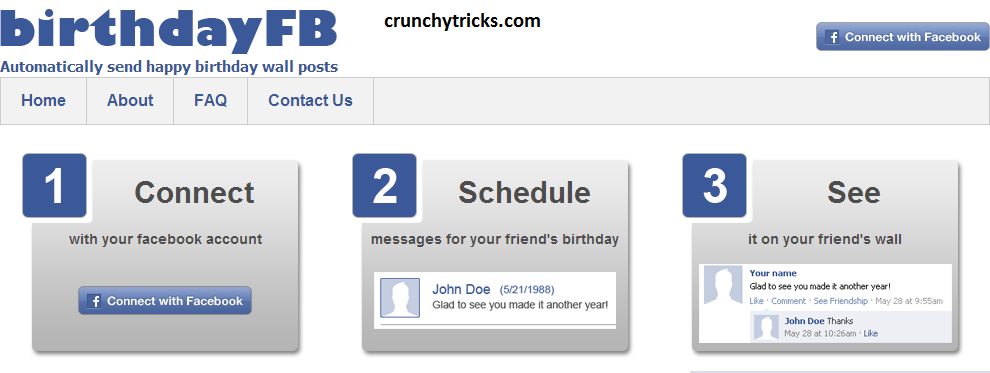
There is a site birthdayFB through which you can configure auto posting of happy birthday wishes to your friends. The thing that is interesting about this trick is that your friends won’t even know that you have used a third-party tool to post wishes on their wall. I have written the method step by step so that you can understand it easily.

Step 1: Go To birthdayFBYou can see the screenshot of birthdayFB below. It provides you a simple and easy to use interface. Just three steps and then you are done. So simple it is.


birthdayFB
birthdayFB

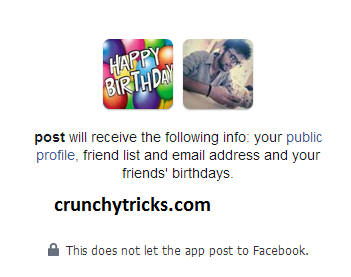
Step 2: Click On Connect With Facebook. It will ask you to allow permission for receiving specific information of your Facebook id such as your profile, friend list, email address and your friend’s birthday. Don’t take tension, it’s not spam. Just click on Okay.

Allow Permission_1
Allow Permission_1


Step 3: Now it will ask you again for permission that is wall posting on your behalf about this app, simply click on Okay

Allow Permission_2
Allow Permission_2


Step 4: This will show up the home page of birthdayFB. You will see a complete list of upcoming birthdays. Just choose the friend for which you want to set up auto posting of birthday wishes. Click on the Arrow at the right corner of your friend and select Write Message.

Write Message
Write Message

Step 5: Now you will be having two options either you can write your own birthday wishes or choose from the available one. After writing just simply click on Save button. This will schedule auto posting of your birthday wishes on your friend’s wall. You can do this for all your friends.


Message Options
Message Options

If you want to see the scheduled messages then just go at Scheduled Messages. If you want to remove any scheduled message then you can do it from Scheduled Messages.

Default time of wall posting is set to 9am-11am. You can change it from Preferences menu easily. If you want to unlink your account or wanna delete it then you can do it from Preferences menu.


Preferences
Preferences

Thanks for your interest... Stay connected for more crunchy articles...
Share:

sábado, 12 de julio de 2014

4 Ways To Make Money Through Facebook

Facebook is the 2nd largest network after world's top company Google. A huge amount of users visits Facebook daily and through them Facebook earns in billions. As Facebook is earning in billions, it offers many ways for you to earn a decent amount. If you want to make money through social media, then Facebook is definitely the place to start. If you want to promote something, sell
something; then a place full of billions users will be the best choice for you. Even a small bussiness can earn money through Facebook. 
At present almost whole market is dependent on Facebook's advertisment. There is a huge demand of social media marketing. If someone is expert on social media, he/she can easily make money out of it.
4 Ways To Make Money Through Facebook
Make Money Through Facebook

You won't become rich through Facebook's earning but it will be a decent amount or you can say it will be an extra income for you. We have found some ways for you so that we can guide you easily the process of earning through Facebook step by step. If you are thinking of marketing through Facebook then just go through the guide.

Thing Will You Need For Marketing !!!
What you basically need to do is that, create a FB fanpage and build with more number of likes and thereby improve the organic reach of your page. Note that, Building high quality page with genuine likes is important and using fake like bots and things like that will be of no use. Using fake methods you will surely have a huge crowd but will be of no use. 

How Many Likes Do I Need To Build ?
According to my personal view you should have a minimum audience
of 1 Lakh. Then only you will be able to earn a small amount of money. The thing that is important is genuine audience. Your audience must be interested in your page's content; then only they will go through the advertisment offered by you.

How To Build Likes On Facebook Page ?
There are two methods two build your Facebook page's audience.
1. Self Promotion
2. Paid Promotion

Facebook offers you two ways to build audience for your FB page either you can build it on your own or you can pay Facebook to advertie your page. You can share it with your friends and ask them to like your page or you can advertise with Facebook to gain audience at the starting, when you will have a decent amount of crowd then you can start your marketing easily.

When you have a FB page with decent audience you can earn money through some ways listed below:

1. Through Affiliate Advertising :-
Step 1 :- Find An Affiliate Program
Affiliate programs provides you with a unique ID and marketing materials, and then pay you a commission based on the bussiness you generated. There are many websites offer such program like Amazon offers a competitive affiliate program that pays a percentage of any purchase a person will make after clicking through from your post. Apple's itune program has also affiliate program. 

Step 2 :- Join Affiliate Program
Once you have found a good affiliate program, just sign up for it. Add your details in the required fields. 

Note :-  Affiliate program should always be free, dont'e ever pay a single penny to join an affiliate program. 

Step 3 :- Add Accounts
Make a Facebook account for each affiliate program or group of programs you sign up for. This allows people to follow your pages based on the things they're interested in, rather than having to sign up for one page full of all different kinds of ads. 

Step 4 :- Promote Your Content Offered By Affiliate Program
After getting content or material from affiliate program make post for them daily on your FB page so when user will click on them through your post; you will be able to earn decent amount of money.

Read Also :- Online Data Entry Jobs To Earn Money

2. Through An E-book :- 
Step 1 :- Write An E-book
If you are good at writing then you can write your E-books and sell them through your FB page. Just find out the thing which you are interested and good in writing. The thing you should consider is the people's interest also. Find out the thing in which huge amount of crowd is interested and if you are good in writing about that topic then you will be able to make decent money.

Step 2 :- Secure It
After writing you can create its PDF and can lock it with password so that when user will purchase it you will be able to give it's password otherwise anyone can read it, you will not be able to make a single penny.

Step 3 :- Make It Available Online
Make your E-book available online through your FB page and set the price. Try to make some cool offers so that people find it interesting. Find the area related to your E-book and make it available there also.

3. Sell your Facebook Page :-
If you are not interested in any of the above mentioned way then you can simply build audience for your FB page and can sell it easily. You can contact advertisers who looks for some good Facebook page with huge crowd. Remebmer try to build only high quality FB page only with genuine crowd. 

At the time of selling advertisers will look for daily organic reach of your page and the quality of the audience. 

A genuine crowd of 1 lakh will be much much better than a fake crowd of 5 lakh. Remember quality is always prior than quantity.

4. Through Facebook Apps And Games :- 
You can also earn through money by creating games and apps for Facebook. Popular games developing companies like EA, Zynga, Playdom creates games for Facebook and then they monetize these games with ads.

The thing you will need is learn how to develop Facebook games and apps and just submit to Facebook and then you will have two options to earn:
1. You can make it premium if huge amount of crowd is taking interest in it.
2. Or you can monetize easily.
Share:

Popular Posts

Con la tecnología de Blogger.